BUS Seed Restore
From SWCP Support Wiki
If you are on a new system and have a local copy of your backup set (on an external hard drive,etc), you can restore your files using the BUS Client.
- Download and install the BUS Client software as described here. If you are resuming backups on this computer, choose the Desktop or Server BUS Client. If you're just restoring files, install the Restore client.
- Launch the client, and login with your BUS username and password.
- In the main menu, click Utilities

- In the Utilities menu, select Decrypt Backup Data
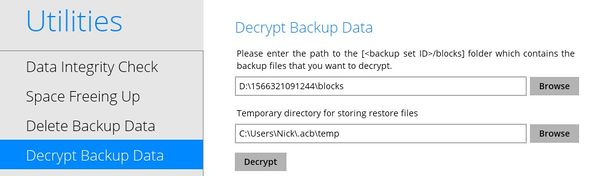
- In the first field, click "Browse" and navigate to the drive containing the backup set. You'll see a folder with the backup set's numerical ID. Select the "blocks" folder inside that folder. If you have multiple backup sets and need help identifying the right one, let us know.
- In the second field, specify a temp folder. It will default to the same folder path used on the system the Backup Set was running on, and will create that folder path if it doesn't exist. Using the "Browse" button, you create a new temp folder and direct it to use the new folder if needed.
- In the first field, click "Browse" and navigate to the drive containing the backup set. You'll see a folder with the backup set's numerical ID. Select the "blocks" folder inside that folder. If you have multiple backup sets and need help identifying the right one, let us know.
- Enter the encryption key for the backup set
- Select the files to restore:
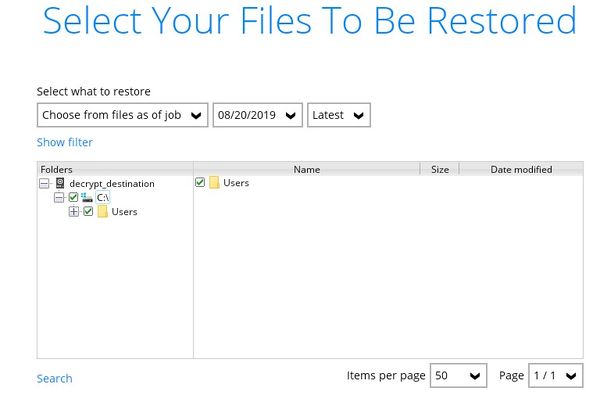
- Using the folder pane on the left, check the files and folders that you want to restore. Leave everything checked to restore the entire set.
- You can search for files matching a particular pattern (*.jpg, for example) using the Search option in the lower left.
- If you want to restore an earlier version of a file from a previous backup job, you can select a particular date and time using the pulldown menus above the folder/file list. Your backup set's retention settings determines how far back you can restore deleted files.
- Using the folder pane on the left, check the files and folders that you want to restore. Leave everything checked to restore the entire set.
- Select the location to restore the files to.
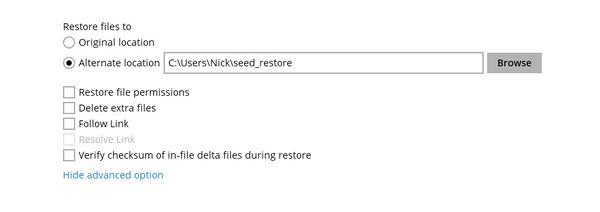
- You can restore the files to their original location, or choose "Alternate location" and click the Browse button to select an different folder to restore to.
- To show additional restore parameters, click "Show Advanced Option" (the defaults are ok in most cases)
- You can restore the files to their original location, or choose "Alternate location" and click the Browse button to select an different folder to restore to.
- Click "Restore".


