Updating Joomla
Why Update My Joomla Site? It works great as it is!
Updating Joomla can be a daunting task, but it is necessary to keep your site secure. As of this writing, all but the latest version of Joomla have commonly-exploited security holes.
If you are unlucky enough to be the target of such an exploit, the attackers will gain full access to your files (including your email) and full access to your database. They may install malicious code in your site to distribute viruses and other malware, which can garner the dreaded This Site May Harm Your Computer warning from Google and Firefox. They may also use your site as a vector to send spam and commit other intrusions and attacks.
In this case, an ounce of prevention is worth many pounds of cure.
Updating Joomla the Easy Way
Hands Off
Be sure your site admins won't be making changes to the site during the update process.
Make Backups
Be sure you have a current, complete backup of your Joomla files and MySQL database.
Verify Joomla Core File Integrity
Hopefully your site developer didn't modify any of the core Joomla files. If they did, upgrading your site will undo these changes and likely break things. Fortunately, we can install a Joomla component to check this for us.
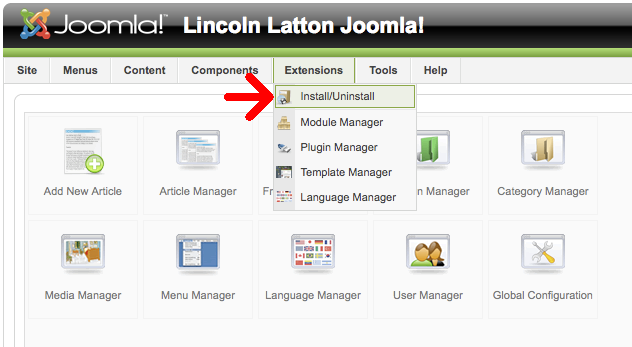
- Log in to your Joomla Administrator console, and go to Extensions -> Install/Uninstall
- Screenshot: Media:Install-extensions.png
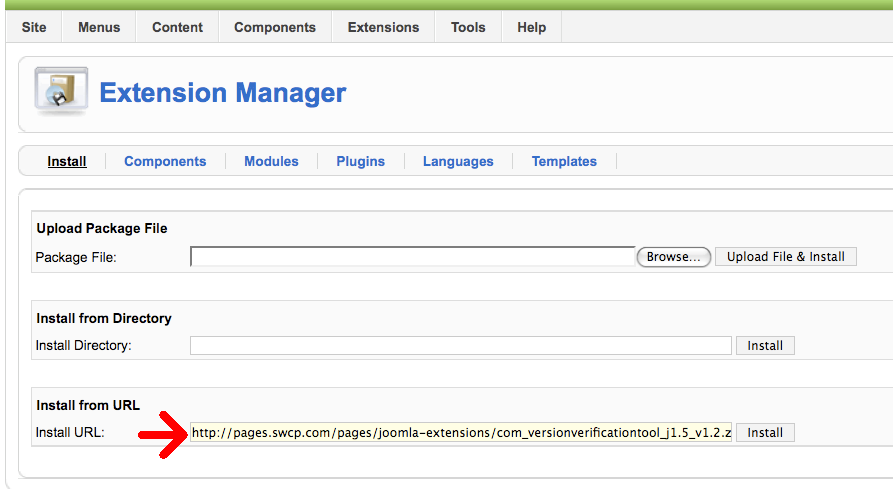
- In the Install From URL field, enter http://pages.swcp.com/pages/joomla-extensions/com_versionverificationtool_current.zip and click Install
- Screenshot: Media:Install-verification-url.png
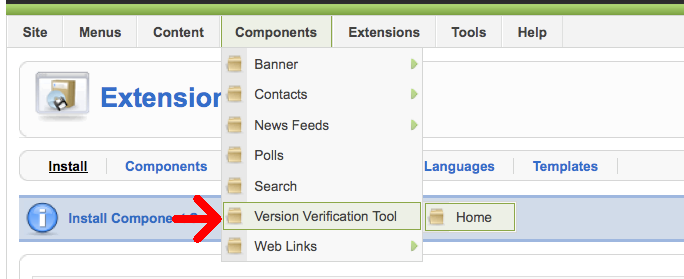
- Go to Components -> Version Verification Tool -> Home
- Screenshot: Media:Run-verification-1.png
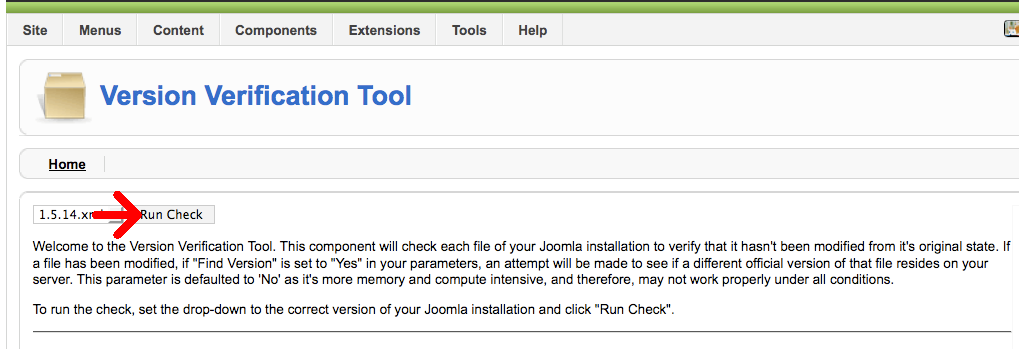
- Confirm the version matches the version number in the upper-right corner of the Administrative Console, then click Run Check
- Screenshot: Media:Run-verification-2.png
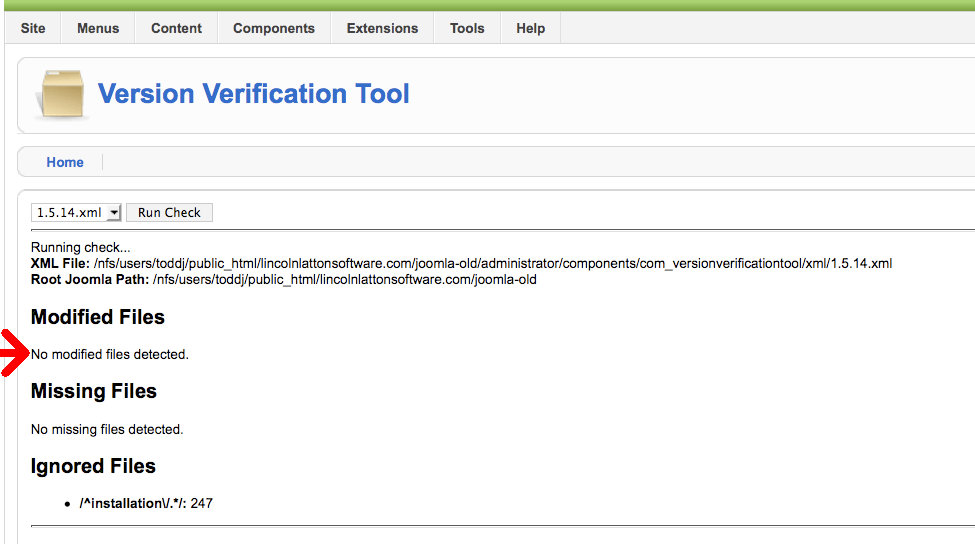
- Hopefully it doesn't find any modified files
- Screenshot: Media:Run-verification-3.png
- If there are modified files, DO NOT PROCEED WITH THE UPGRADE. Contact your web developer or SWCP for assistance.
Update Joomla Core Files
- Go back to Extensions -> Install/Uninstall
- Go to the [Joomla Update Manager Site], and click download.
- Right-click on the file under Filename (currently com_jupdteman_151.tgz), and Copy Link Location
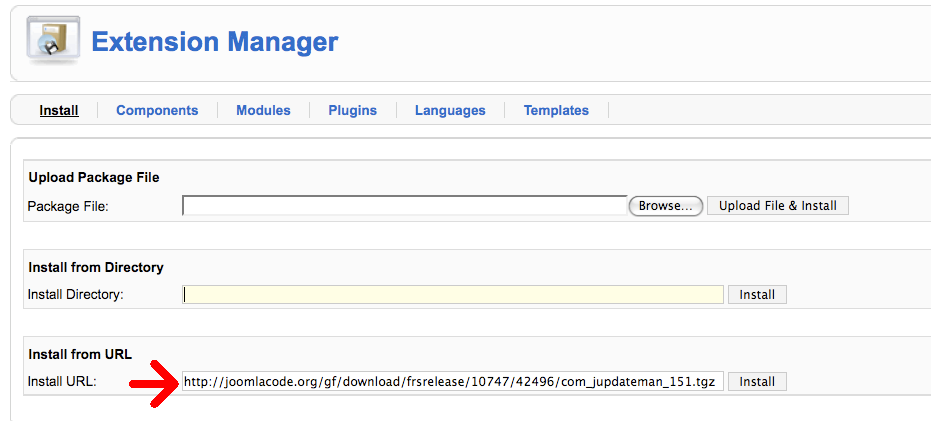
- As before, paste this URL in the Install From URL field and click Install
- Screenshot: Media:Install-updater-url.png
- Go to 'Components -> Update Manager
- The Update Manager will complain if it finds any issues with your current installation. Correct all issues before proceeding.
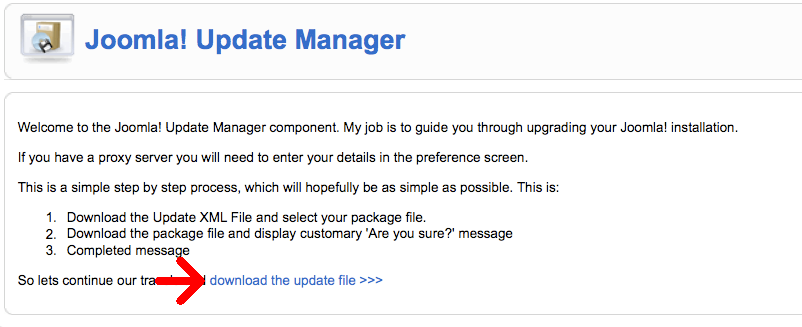
- Once all is well, click download the update file>>>
- Screenshot: Media:Run-update-1.png
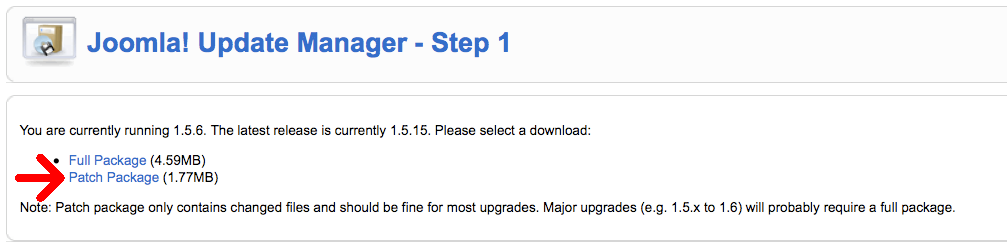
- Click Patch Package
- Screenshot: Media:Run-update-2.png
- Click you can proceed with the install>>>
- Hopefully, you'll see this:

Test, Test, Test
Make sure everything works as expected.
Good Luck!